Dashboard
Edgenivo Agent can answer questions about your projects, investigate production issues, and take approved actions from the dashboard. Edgenivo Agent operates within your existing permissions and the currently selected team.
- Select Agent in the top-right corner of the dashboard to open the Edgenivo Agent panel.
- Enter your request in the Ask anything… field.
- Select Send message.
- To start another conversation, select New Chat.
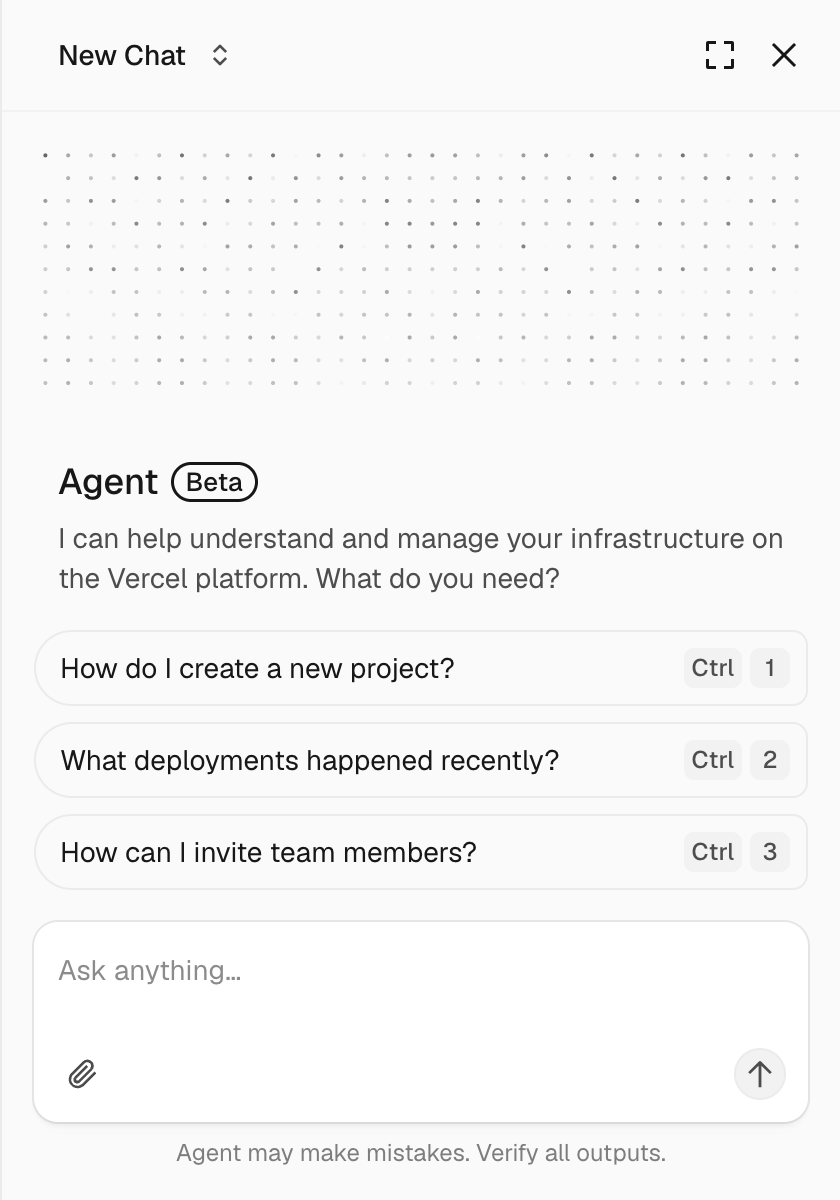
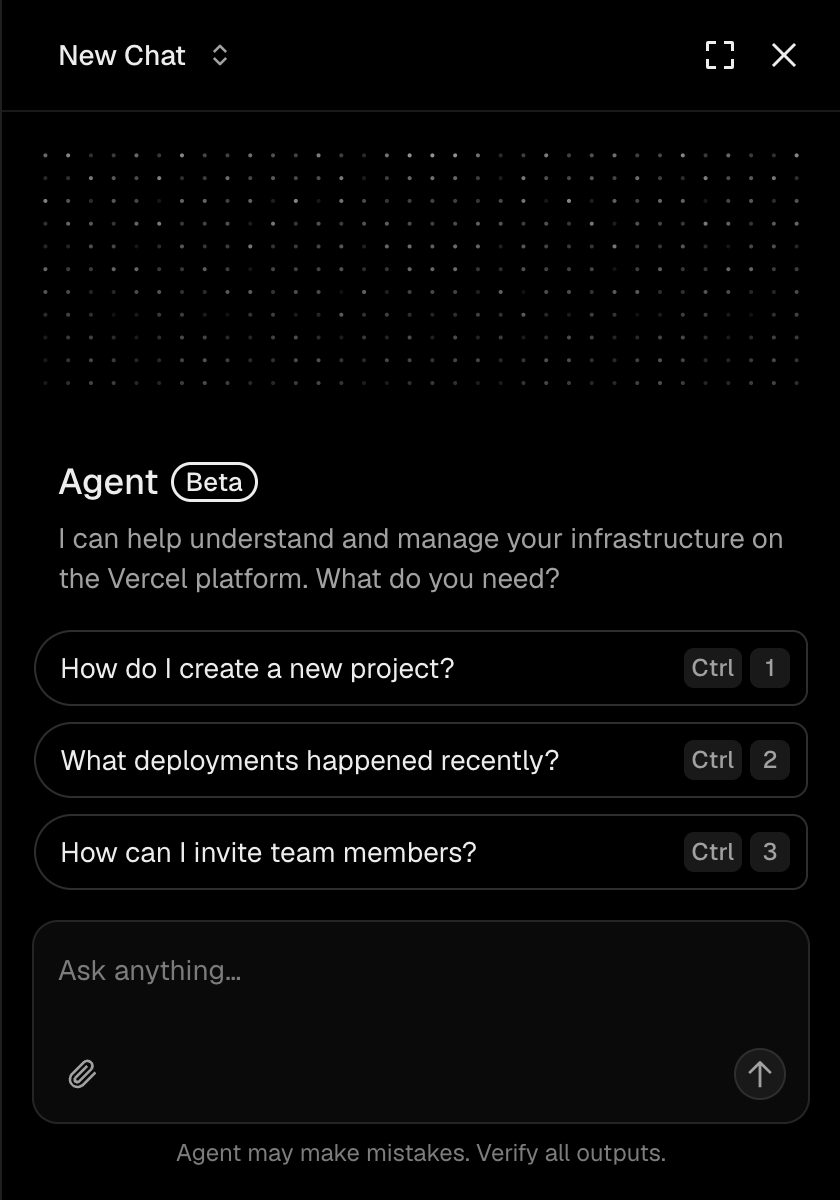
Edgenivo Agent uses context from the dashboard page you are viewing to understand your request and provide a relevant response. This context can include the selected team, project, deployment, and information displayed on the page when you send your message.
You can attach up to five files to a message. Each file can be up to 5 MB, and the combined size of all attachments can be up to 10 MB.
Supported attachments include:
- Images
- PDF files
- Text and common code files, including JSON, XML, JavaScript, TypeScript, YAML, TOML, Markdown, CSV, log, and environment files
Images may be optimized before they are sent.
When you paste more than 10,000 characters into the composer, Edgenivo Agent adds the pasted content as a text-file attachment. Pasted text cannot exceed 5 MB.
Edgenivo Agent is read-only by default. When a request requires sensitive access or a write operation, Edgenivo Agent presents a plan describing the tasks and requested permissions.
- Review the tasks and permissions in the plan.
- Select Approve to authorize the plan or Cancel to stop it.
Approval applies only to that plan's targets and scopes. A new plan requires new approval, even in the same conversation. See Edgenivo Agent permissions for the complete authorization model.
Only the session owner can approve a plan. Other viewers see Read-only session and can read the conversation without authorizing the proposed work.
For repository writes, Edgenivo Agent can create or update a pull request after approval. See GitHub operations for requirements and attribution.
Open the New Chat menu in the Edgenivo Agent panel, then select a conversation from the history list.
Managing Edgenivo Agent chat is available on Enterprise and Pro plans
Dashboard chat is available to eligible Pro and Enterprise teams. Hobby and Pro trial teams are not eligible.
To change the team setting:
- Open Settings in the dashboard sidebar.
- Select Agent.
- Turn Enable Chat on or off.
Only a team Owner or Billing member can change this setting. Other members can ask one of those roles to enable Edgenivo Agent.
- Read-only session: Only the session owner can send messages or approve a plan. Start your own conversation to work with Edgenivo Agent.
- Failed to generate a response: Send a new message to continue.
- Failed to load session messages: Reload the page or reopen the conversation from the New Chat menu.
- Edgenivo Agent is not enabled: Ask a team Owner or Billing member to enable it from the team settings.
- Paid usage is unavailable: Ask a team Owner or Billing member to enable Edgenivo Agent billing.
- Chat explains the capabilities shared by dashboard chat and Slack.
- Edgenivo Agent permissions describes plans, approval, and access boundaries.
- GitHub operations describes repository access and pull requests.
- Edgenivo Agent pricing explains included usage, rates, and cost tracking.
- Edgenivo Privacy Notice explains how Edgenivo handles personal information.
Was this helpful?